Adding Pages
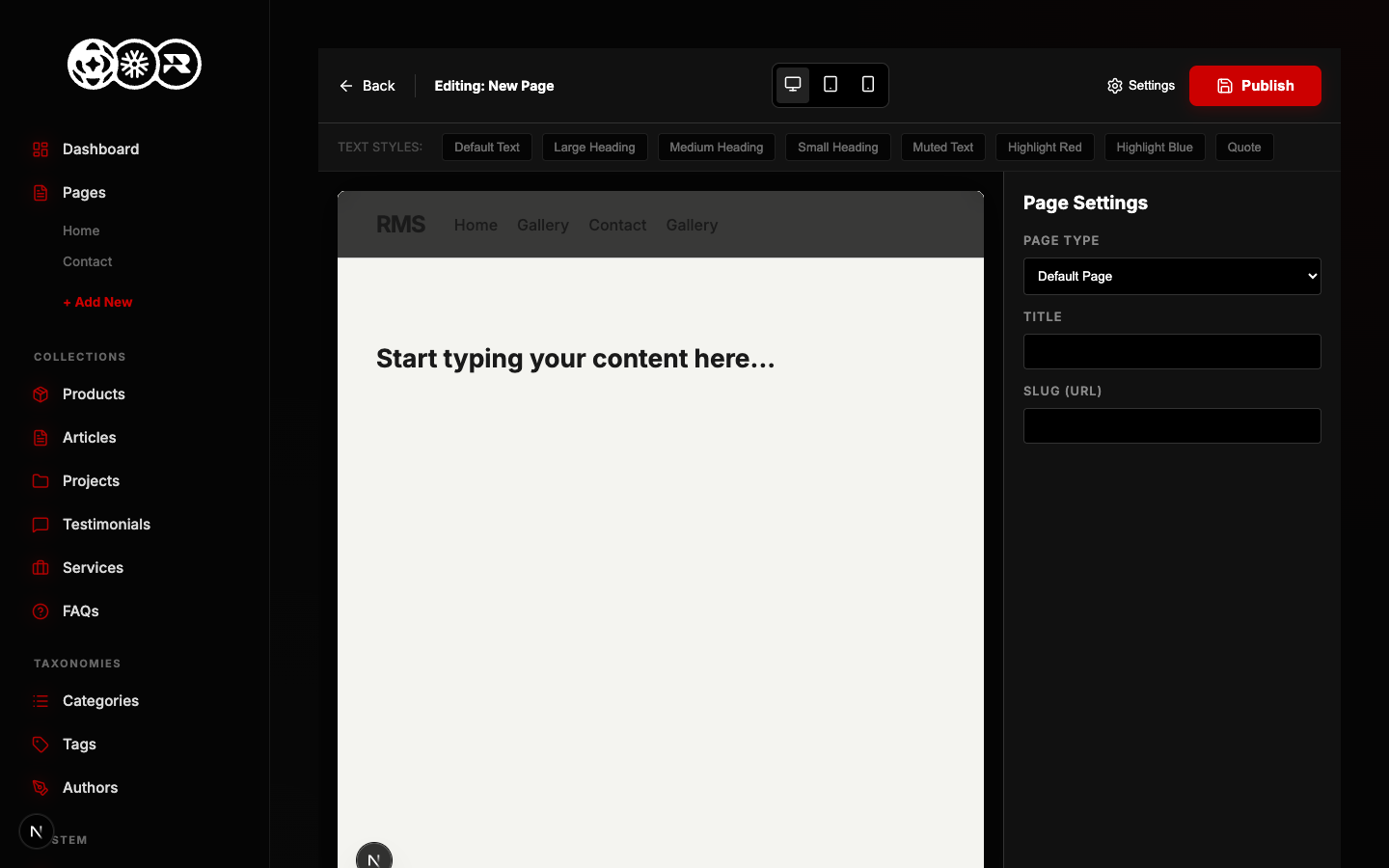
Creating a new page in RMS is an entirely visual process. You do not need to fill out a long form before seeing your page.
Step-by-Step Instructions
- Navigate to the Pages tab in your sidebar.
- Click the glowing red + Add Page button at the top right.
- The visual editor will immediately launch a blank canvas.
- Click anywhere on the text to start drafting your content.
- Open the Settings Panel to finalize the URL slug and Template.
- Click Publish. If the slug is unique, your page is now live!