Managing & Editing Pages
You can easily modify any existing page by re-entering the Visual Editor. All your text, layout, and component choices will be loaded directly into the canvas.
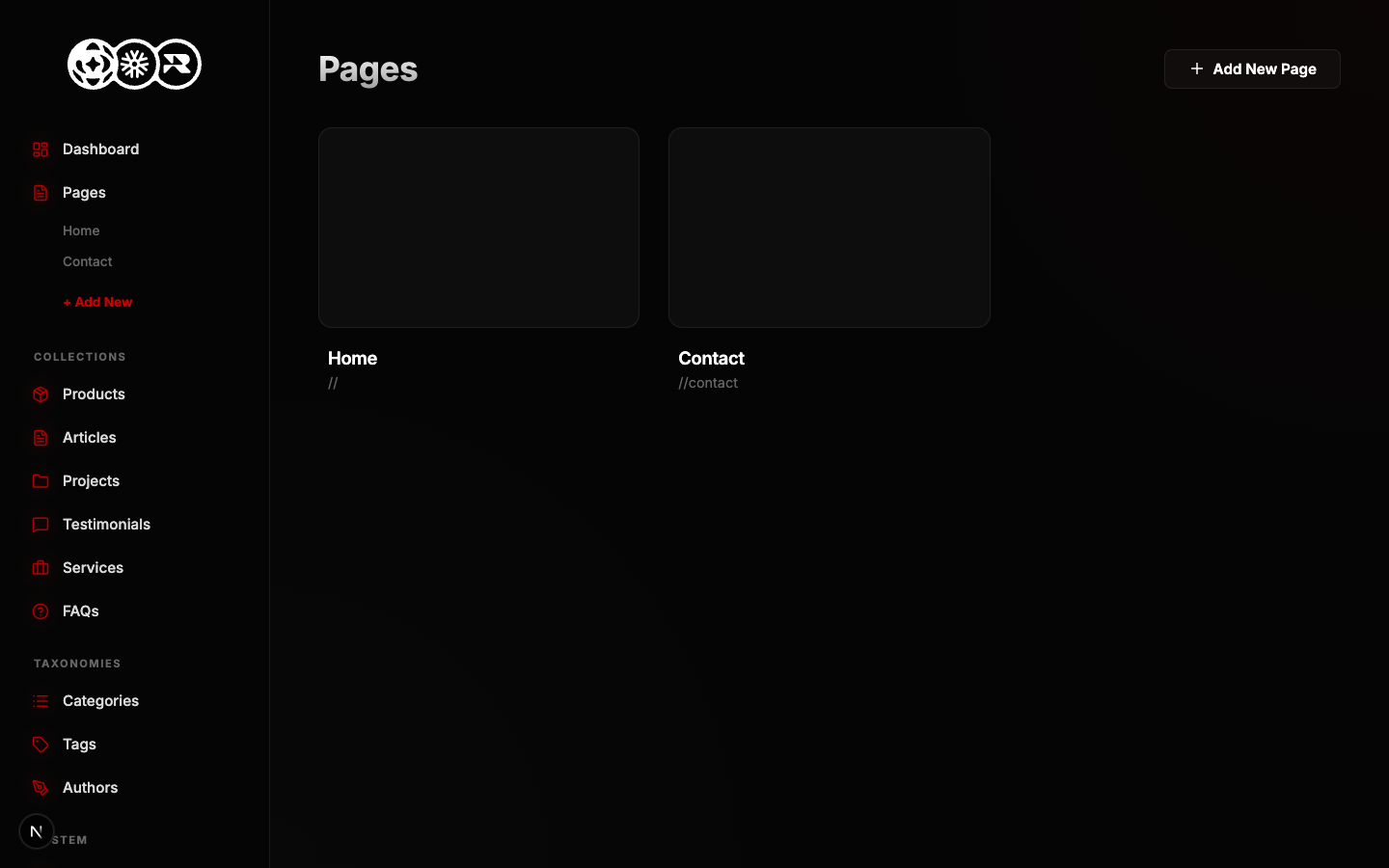
How to Edit an Existing Page
- Go to the Pages tab in the sidebar.
- Find the page you want to update in the list.
- Click the Edit (Pencil) icon on the right side of the row.
- The visual editor will load with your live content. Make your changes by typing directly into the canvas.
- Click Save to instantly update the database.